
Fibre gets installed. The ISP router goes wherever the fibre comes into the house: a cupboard, a passage, the far corner of the lounge. The Wi-Fi is great in that room, decent in the next one, and gone by the time you reach the main bedroom.
So you buy an extender. Then another one for the patio. Now you have three boxes, three admin pages, maybe two different network names, and the TV in the bedroom still buffers every evening.
South African homes make this harder. Double-brick walls, concrete slabs between floors and long single-storey layouts are tough on Wi-Fi. No single box in a cupboard is going to cover all of that properly, and no number of extenders will fix the underlying problem.
There is a better way to build a home network, and it is the same way offices, hotels and schools have done it for years.
One Box Doing Four Jobs
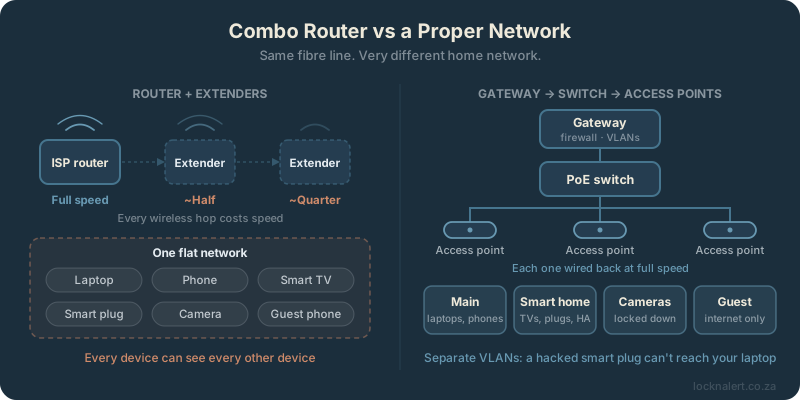
The router your ISP gave you (or the one you picked up at the shop) is really four devices squeezed into one plastic case:
- A router and firewall that connects your home to the internet.
- A switch that gives you the handful of network ports on the back.
- A Wi-Fi access point that broadcasts your wireless network.
- A DHCP server that hands out an address to every device that connects.
That is fine for a small flat. But it means all of your Wi-Fi comes from one spot, wherever that box happens to be. When one part of it is not good enough, you replace the whole thing. And ISP-supplied routers are rarely the ones that get regular firmware and security updates.
Why Extenders Make It Worse
A Wi-Fi extender listens to your router's signal and repeats it. The trouble is in how it does that.
- It cuts your speed. Most budget extenders use the same radio to talk to the router and to your devices, so every bit of data crosses the air twice. Put a second extender behind the first and you are left with a fraction of what your fibre line actually delivers.
- It repeats a weak signal. An extender has to sit where the router's signal is still strong, which is usually not where you need the coverage. Put it where the Wi-Fi is bad and it simply rebroadcasts bad Wi-Fi.
- Your devices get stuck. Phones and laptops tend to cling to whatever they connected to first, even after you have walked to the other side of the house. You end up on a distant, weak signal while a stronger one is right next to you.
- More boxes, nobody managing them. Every extender has its own settings, its own firmware and its own password. In practice, nobody updates them.
Consumer mesh kits are a step up, but most still pass data wirelessly between units, with the same speed penalty, and very few give you the network controls we will get to further down.
The Better Way: Gateway, Switch, Access Points
Instead of one box doing everything, a proper network gives each job to a device built for it, all connected with network cable.
The gateway: the brains
The gateway sits next to your fibre box and handles the internet connection, the firewall, addressing and, importantly, the separate networks we will cover in a moment. It does not do Wi-Fi at all. Its job is to route traffic and decide what is allowed to talk to what.
The switch: the backbone
A PoE (Power over Ethernet) switch connects everything with cable, and powers the access points over that same cable. No plugs on the ceiling, no power adapters behind the couch.
There is a real bonus here for South African homes. Because the access points draw their power from the switch, one UPS on the gateway and switch keeps your entire Wi-Fi running through load shedding. With a router and three extenders, you need a backup power solution at every plug point.
The access points: Wi-Fi where you actually need it
Access points are mounted on the ceiling in the rooms where you spend your time, and cabled back to the switch. Every one of them gets the full speed of the network cable, no matter how far it is from the gateway. Need coverage on the patio or in the cottage? Add another access point. Nothing gets thrown away.
They all broadcast the same network name and are managed as one system, so your phone hands over from one access point to the next as you walk through the house, without dropping your video call.
Why Reyee and Ubiquiti
Reyee and Ubiquiti (UniFi) are both built around exactly this design. The gateway, switches and access points from the same family are adopted into one app, where you can see and manage every device, every connection and every network from a single screen.
- One app for the whole network. Settings, Wi-Fi changes and firmware updates are made once and pushed to every device.
- No licence fees. Neither platform charges a subscription to manage your own network. You buy the hardware once.
- It grows with you. More coverage means adding an access point, not starting over.
- Business-grade features at home prices. Including the one that matters most in a smart home: VLANs.
Reyee offers excellent value and is easy to get hold of in South Africa. Ubiquiti's UniFi range is more premium, with a very polished app and a huge range of hardware. Both are solid choices, and the right one comes down to the size of the home and the budget.
VLANs: Giving Your Smart Devices Their Own Room
Here is something most people do not realise: on a normal home network, every device can see every other device. Your work laptop, the phone you bank on and the family photos on your NAS all share a network with the R200 smart plug, the smart TV, the robot vacuum, the cameras and every visitor's phone.
That matters, because cheap smart devices are the weakest link on most home networks. Many get few or no security updates, run old software and talk to servers overseas all day long. If one of them is ever compromised, it is sitting on the same network as everything you care about, free to look around.
What a VLAN does
A VLAN (virtual LAN) splits one physical network into several separate ones. Same cables, same switch, same access points, but each network is walled off from the others. Each Wi-Fi name can be tied to its own VLAN, so a device lands on the right network simply by which Wi-Fi it joins.
A typical home we set up looks something like this:
- Main network: phones, laptops, tablets and the computer in the study. The devices that hold your personal data.
- Smart home network: smart TVs, streaming boxes, plugs, bulbs, speakers and the robot vacuum. Home Assistant lives here too.
- Cameras: on a network of their own, with no access to the rest of the house and only the internet access you choose to give them.
- Guest network: internet only. Visitors get Wi-Fi without ever seeing a single device in your home.
The rules between them
The VLANs are the walls. Firewall rules on the gateway are the doors, and you decide which ones open. A common setup:
- The main network can reach the smart home network, so your phone can still control the lights and the TV.
- The smart home network cannot start a connection into the main network.
- Guests can reach the internet and nothing else.
- Cameras can reach the recorder and whatever remote viewing you allow, and nothing else.
The result: if that cheap smart plug is ever compromised, it finds itself in a room full of other smart plugs. Your laptop, your phone and your files are simply not visible to it.
Some conveniences, like casting to the TV and automatic device discovery, need a little extra configuration to work across VLANs. That is part of setting a network up properly, and something we configure as part of every install.
Where Home Assistant and Your Alarm Fit In
If you run Home Assistant with a LocknAlert Bridge, the smart home VLAN is the natural place for both. Keep Home Assistant and the Bridge on the same VLAN so they find each other automatically, and allow your main network to reach Home Assistant so the app on your phone keeps working.
It is the same idea behind everything we build: your alarm data stays local, on a part of your network that only the devices you trust can reach.
Is It Worth It?
Honestly, for a small flat with a handful of devices, a decent single router may be all you need.
For a family home, especially one with smart devices, cameras, a home office or more than one floor, the answer is almost always yes. It costs more upfront than a combo router, and it needs network cable run to each access point. In return you get:
- Full-speed Wi-Fi in every room, not just the one with the router.
- Seamless hand-over as you move through the house.
- The whole network on one UPS during load shedding.
- Separate networks that keep smart devices, cameras and guests away from your personal data.
- One app to manage all of it, with no monthly fees.
You do it once, you do it properly, and you stop buying extenders.
Want Your Network Done Properly?
We design, supply and install Reyee and Ubiquiti home networks: gateway, switching, access points and VLANs, fully set up and commissioned. Every job starts with a site visit so we can plan coverage around your home.